Komikku APK
Your manga library, reading progress and next chapter. All in one Android app.
v1.14.1 · Android 8.0+ · 97.8 MB

ANDROID MANGA READER
What Is Komikku?
Komikku is a free manga reader for Android that keeps your series, reading history and downloaded chapters in one place. You can read manga, manhwa and long-strip webtoons, then pick up where you left off without hunting through browser tabs.
If you have used Tachiyomi or Mihon, parts of the app will feel familiar. Komikku builds on that reader family and adds options such as cover-based colors, hidden categories, suggestions and bulk actions for managing your collection.
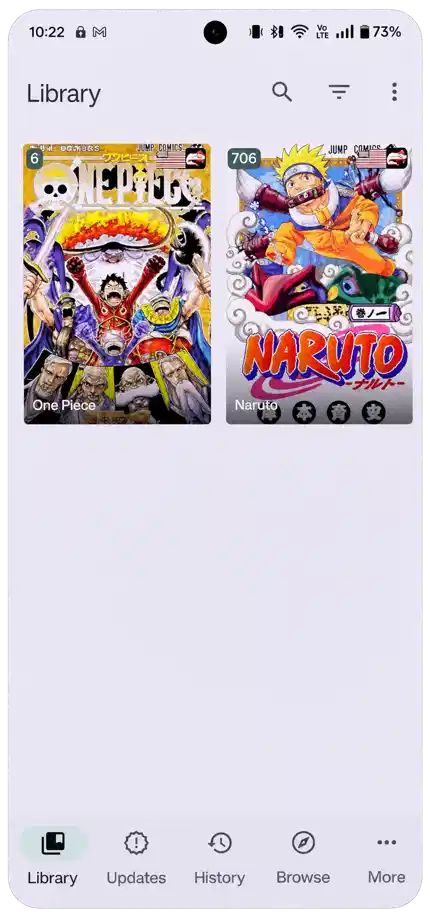
Your library will be empty when you first open the app, and that's expected. You add your own local files or set up compatible content sources. Once you save a few series, that empty screen becomes your personal bookshelf.
Komikku APK: Version and Requirements
Before you download the file, check the Android requirement and package details below. The universal APK is the build available here.
| Detail | Information |
|---|---|
| Application | Komikku |
| Version | 1.14.1 · Stable |
| Platform | Android 8.0 and above |
| Package | APK · Universal build |
| File size | 97.8 MB · 93.3 MiB |
| Release date | 17 July 2026 |
| Price | Free |
| Content | Bring your own sources or local files |
Komikku App Screenshots
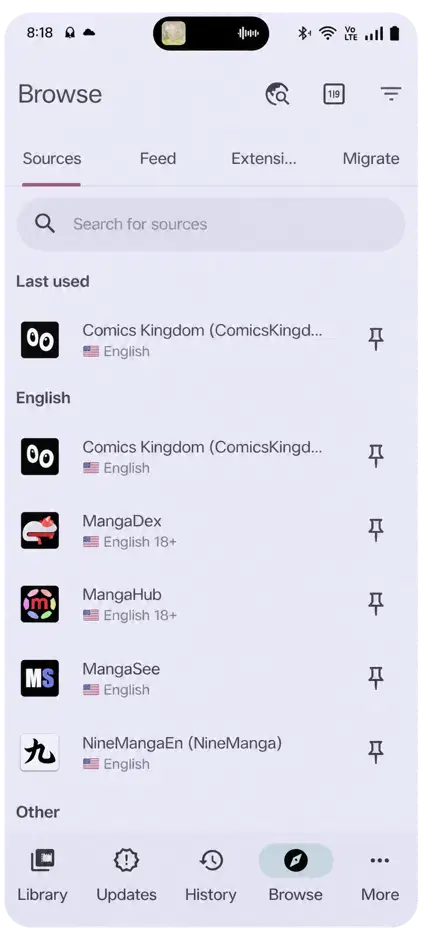
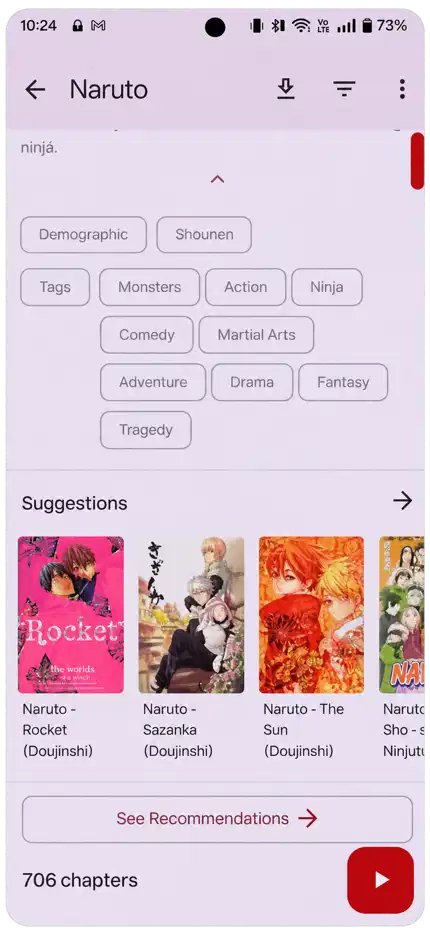
Here is what you will see when you browse sources, open your library and explore a series.
KOMIKKU FEATURES
Komikku Features for Manga Reading
Whether you follow three series or a whole reading list, these are the features you will use most.

Manga Library and Categories
Add the series you want to follow, then sort them into categories that make sense to you. You might keep separate groups for current reads, completed stories and things you want to try next. Select several entries when you need to organize them together.
You can also hide selected categories from your usual library view if you'd rather keep them separate.

Offline Manga Downloads
Heading somewhere with a weak connection? Download the chapters you want while you're online, then read them later. You won't need Wi-Fi to open pages that have already finished downloading.
Remember to check your free storage and the download status before you leave. Adding a series to your library saves its entry, but it doesn't save every chapter to your phone.

Customizable Manga Reader
You don't have to read every series the same way. Choose a reading direction and layout that fit the pages. A traditional manga chapter and a long vertical webtoon can each have a setup that feels right.
Try the viewing options, filters and appearance settings on a chapter you know. Small changes can make pages more comfortable to read on your screen.
App Themes and Appearance
Choose light or dark mode, then explore the available color palettes. If you enjoy a more personal look, cover-based colors can carry a series' artwork into its details page and reader.
These settings change how the app looks. Your chapter files and their original image quality stay the same.

Reading Progress and Tracker Support
You can return to the chapter you stopped on from your library. If you already use AniList, MyAnimeList or another supported tracker, connect it to help keep your reading progress in one place.
You'll need to sign into your chosen service and match the right series. A tracker records progress; it doesn't provide the chapters themselves.

Manga Suggestions and Saved Searches
When you finish a series or want something similar, check its suggestions. What you see depends on the source and the information it provides. Saved searches and library shortcuts can also save you a few taps.
For a larger collection, bulk actions help you make the same change to several entries without opening each one separately.
How to Install Komikku on Android
You don't need to root your phone to install the reader. Check that you're on Android 8.0 or newer, and leave some room for the app plus any chapters you want to download.
1. Download and Install the APK
- Tap Download for Android to save the APK file.
- Wait for the download to finish, then open it from your browser or Downloads folder.
- If Android asks, allow this browser or file manager to install unknown apps.
- Review the installer prompt and tap Install.
- Open the app when installation finishes.
Android gives this permission to the browser or file manager opening your APK. Once you've installed the app, you can switch that permission off again.
2. First-Time App Setup
- Choose a storage location when prompted.
- Open Browse and review the available source options.
- Add local content or configure a compatible extension you trust.
- Open a source, find a series and view its details.
- Select Add to library, then choose a chapter to begin.
Keep your first setup simple: one source and one series are enough. Once you can open a chapter, you can build the rest of your library at your own pace.
Komikku Sources, Extensions and Local Files
Want to see the process in more detail? Follow our guide to using Komikku, from adding a source to opening your first chapter.
Think of an extension as the connection between your reader and a content service. Komikku doesn't come with one huge catalog or a recommended extension collection. The source you choose determines the titles, languages and page quality you can access.
Choose content you have permission to access, and take a moment to review any extension before installing it. You don't need to add every repository you find just to get started.
Already have compatible comics on your phone? Use the local-source option and keep those files in the storage location you've selected. You can read your own files alongside series from your configured online sources.
Manga and Webtoon Reader Settings
- Open a chapter and bring up the viewing options.
- Choose a paged layout for page-based manga or vertical scrolling for long strips.
- Adjust the reading direction, scaling and background to your preference.
Before you rely on offline reading, download a chapter and open it with your connection off. It's a quick way to check that the actual pages are saved on your device.
Library Backups and App Updates
Before you change phones, reinstall the app or make big setup changes, save a backup:
- Open More → Data and storage.
- Choose Create backup.
- Save the file somewhere you'll be able to find later.
Your backup can keep library entries, reading data and selected settings, but it doesn't contain downloaded chapter pages or installed extensions. If you're moving to another phone, keep those files separately as well.
For a compatible update, install the new release over your existing app. If Android reports a conflict, don't rush to uninstall. Back up your library first, then check that you're using the same app variant.
Common Komikku Problems and Fixes
Why Won't Komikku Install?
First, check your Android version, free storage and whether the download finished. If you're updating an existing installation, a conflicting package or different signing identity may be the cause. The exact error message will help you narrow it down.
Why Is the Manga Library Empty?
If you've just installed the app, an empty library is normal. Set up a source or add local content, then save a series. Installing an extension gives you a way to browse; it doesn't automatically fill your library.
Why Won't Manga Chapters Load?
Check your connection, then try a different chapter from the same source. If only that source is failing, its service or extension may be the problem. Reinstalling the whole reader won't necessarily help with a source outage.
Why Are Chapter Downloads Stuck?
Make sure you have free space and that the download location is still available. Try one chapter with the app open, and review Android's background restrictions if needed. Test a second series before changing the rest of your setup.
Komikku APK FAQs
 Is Komikku APK Free?
Yes, you can use the reader for free. Individual content sources and tracking services have their own access rules, so check those separately if you choose to use them.
Is Komikku Available on iPhone?
No. This file is an Android APK, so you can't install it directly on an iPhone or iPad.
Does Komikku Support Offline Reading?
Yes. You can read compatible local files and chapters you've finished downloading. You'll still need a connection to browse online sources or fetch new pages.
Is Komikku for Android the Same as the Linux App?
No. This page is about the Android reader. The Linux app with the same name is a separate project and uses a different installation process.
Does the App Include Every Manga?
No. What you can read depends on the sources or local files you add. Availability can vary by language, region and the source's own access rules.
Are Downloaded Chapters Included in a Backup?
No. Keep downloaded pages separately when you move to another device. Your library backup and your chapter files do different jobs.
Getting Started With Komikku
If you want to keep your manga organized and have more control over how you read, Komikku gives you a useful set of tools. Start with a compatible download, add your content and try a chapter before spending time on every setting.
You can add categories, tracker connections and offline chapters as you need them. Keep a backup, choose sources carefully and make the setup work for your reading habits.